


-
About
About
-
Schools
Schools
-
Professional Learning
Professional Learning
Formats We Host
Overview & Calendars
Series
For Presenters & Members
- Careers Careers
-
Accreditation
Accreditation
-
Athletics
Athletics
- Login








 Quick Links
- Board of Trustees
- History
- Membership
- Mission
- Services to Schools
- Staff
 Upcoming Events
View All
 Careers
View All
School Portal Help›Grant admin or user access to a colleague
Users · 2 min read
Grant admin or user access to a colleague
Everyone at your school starts with ‘member’ access – they can browse and register for events, but not manage school data. There are two ways to gain a permission: your school’s Head or an existing admin grants it, or you request it from NYSAIS support (we approve when the permission fits your role).
Two paths
1. Your school grants it. Head of School (admin by default), or any existing user at your school who holds the Users permission, can grant additional permissions. This is the normal path.
2. NYSAIS grants it directly on request. If your school’s admin is not available, submit a support ticket asking for the permission you need. We approve when it matches your role at the school – a CFO asking for Orders to pull receipts is a yes; a request that does not fit your role gets redirected back to your Head or admin.
The five permissions
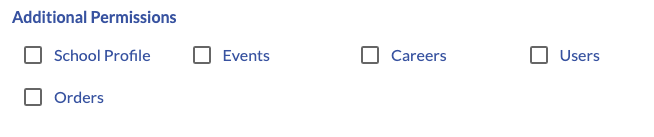
- Orders – view, print, and download event-registration invoices and receipts placed by anyone at your school.
- Events – add and edit school events shown on your page and in the NYSAIS Member School Events calendar.
- Careers – post, edit, and close job listings for your school.
- Profile – edit the public-facing school profile and banner image.
- Users – add, edit, and delete people in your school directory, and grant these same permissions to others.
Steps
- Open the Users tab in the portal menu.
- Find the colleague you want to grant access to and open their profile (or add them first if they are not listed).
- Scroll to Additional Permissions and check the boxes for what they need.
- Save.
About "Admin" access
An admin gets all five permissions at once. NYSAIS grants admin access only through a support ticket – reach out here if you need to promote someone to full admin.